반응형

JDBC test

package com.test.persistence;

import static org.junit.Assert.fail;

import java.sql.Connection;
import java.sql.DriverManager;

import org.junit.Test;

import lombok.extern.log4j.Log4j;

@Log4j
public class JDBCTests {
	static {
		try {
			Class.forName("oracle.jdbc.driver.OracleDriver");
		}catch(Exception e) {
			e.printStackTrace();
		}		
	}
	
	@Test
	public void testConnection() {
		try(Connection con =
				DriverManager.getConnection(
						"jdbc:oracle:thin:@localhost:1521:XE",
						"test",
						"test")){
			log.info(con);
		}catch(Exception e) {
			fail(e.getMessage());
		}
	}
}


dataSource test

package com.test.persistence;

import static org.junit.Assert.fail;

import javax.sql.DataSource;

import org.junit.Test;
import org.junit.runner.RunWith;
import org.springframework.test.context.ContextConfiguration;
import org.springframework.test.context.junit4.SpringJUnit4ClassRunner;


import lombok.Setter;

import lombok.extern.log4j.Log4j;

@RunWith(SpringJUnit4ClassRunner.class)
@ContextConfiguration("file:src/main/webapp/WEB-INF/spring/root-context.xml")
@Log4j
public class DataSourceTests {
	
	@Setter
	private DataSource dataSource;
	@Test
	public void testConnection() {
		try(java.sql.Connection con = dataSource.getConnection()){
			log.info(con);
		}catch(Exception e) {
			fail(e.getMessage());
		}
	}

}


끝!

반응형

'Spring Framework > 환경설정' 카테고리의 다른 글

[Spring Tool Suite4] 종합설정  (0) 2021.02.09
Spring Legacy Project 생성 및 기본설정  (0) 2021.01.07
Spring 구동순서  (0) 2021.01.07
Spring 설정파일  (0) 2021.01.07
반응형


1. pom.xml 수정

<java-version>1.8</java-version>
<org.springframework-version>5.0.7.RELEASE</org.springframework-version>		


2. spring 관련 라이브러리 추가

<!-- Spring tx, test, jdbc-->
<dependency>
	<groupId>org.springframework</groupId>
	<artifactId>spring-test</artifactId>
	<version>${org.springframework-version}</version>
</dependency>		
<dependency>
	<groupId>org.springframework</groupId>
	<artifactId>spring-tx</artifactId>
	<version>${org.springframework-version}</version>
</dependency>	
<dependency>
	<groupId>org.springframework</groupId>
	<artifactId>spring-jdbc</artifactId>
	<version>${org.springframework-version}</version>
</dependency>


3. Mybatis 및 HikariCP,mybatis-spring, Log4jdbc 라이브러리 추가

<!-- Mybatis -->
<dependency>
	<groupId>org.mybatis</groupId>
	<artifactId>mybatis</artifactId>
	<version>3.4.6</version>
</dependency>
<dependency>
	<groupId>org.mybatis</groupId>
	<artifactId>mybatis-spring</artifactId>
	<version>1.3.2</version>
</dependency>

<!-- log4jdbc -->
<dependency>
	<groupId>org.bgee.log4jdbc-log4j2</groupId>
	<artifactId>log4jdbc-log4j2-jdbc4</artifactId>
	<version>1.16</version>
</dependency>
		
<!-- HikariCP -->
<dependency>
	<groupId>com.zaxxer</groupId>
	<artifactId>HikariCP</artifactId>
	<version>2.7.8</version>
</dependency>


4. Lombok추가 및 jUnit버전 변경

<!-- lombok -->
<dependency>
	<groupId>org.projectlombok</groupId>
	<artifactId>lombok</artifactId>
	<version>1.18.0</version>
	<scope>provided</scope>
</dependency>

<!-- jUnit -->
<dependency>
	<groupId>junit</groupId>
	<artifactId>junit</artifactId>
	<version>4.12</version>
</dependency>


5. Servlet 버전 변경

<!-- Servlet -->
<dependency>
	<groupId>javax.servlet</groupId>
	<artifactId>javax.servlet-api</artifactId>
	<version>3.1.0</version>
	<scope>provided</scope>
</dependency>


6. Maven관련 Java버전 수정

<plugin>
    <groupId>org.apache.maven.plugins</groupId>
    <artifactId>maven-compiler-plugin</artifactId>
    <version>2.5.1</version>
    <configuration>
       <source>1.8</source>
       <target>1.8</target>
       <compilerArgument>-Xlint:all</compilerArgument>
       <showWarnings>true</showWarnings>
       <showDeprecation>true</showDeprecation>
    </configuration>
</plugin>


프로젝트명 우클릭하여  Maven > Update Project 실행


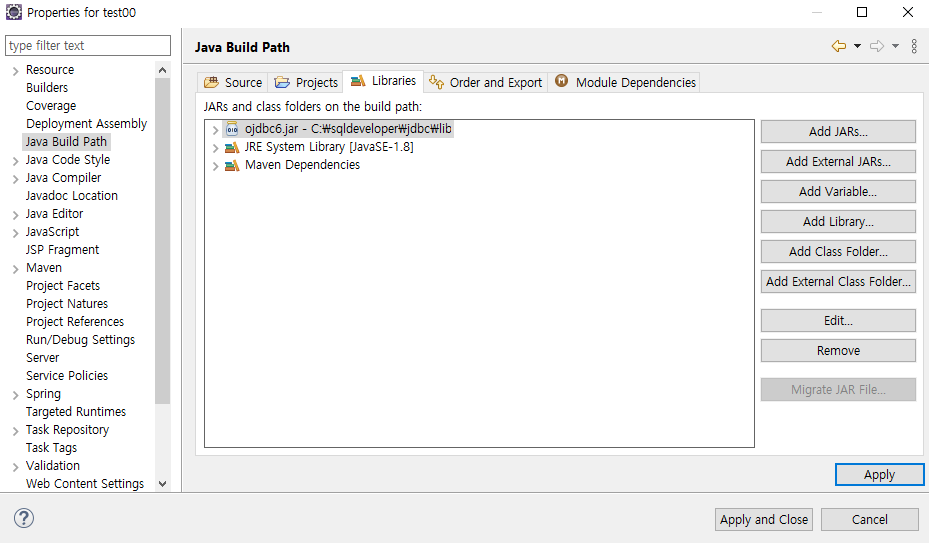
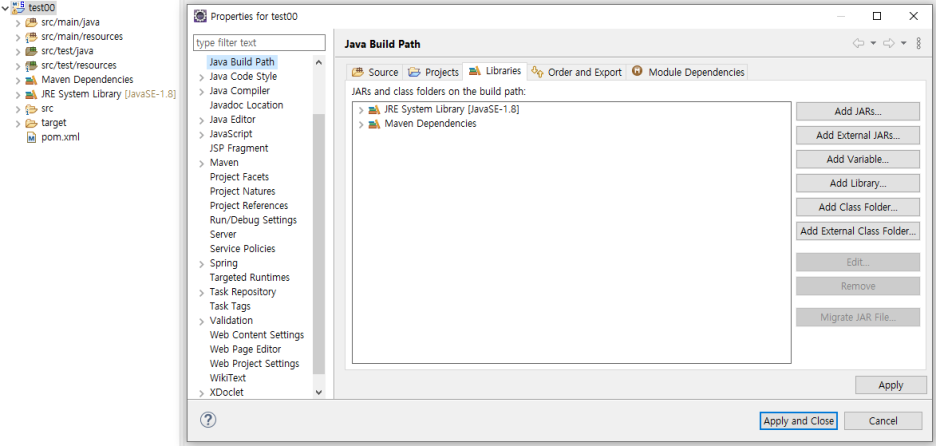
7. Oracle JDBC Driver를 Build Path에 추가


프로젝트 우클릭 후 Properties 클릭

Java Build Path 클릭 후 Libraries탭 확인


우측에 'Add External JARS...' 클릭

sqldeveloper 설치경로 jdbc/lib 밑에 ojdbc6.jar 파일 선택


추가 된 것을 확인

우측하단 Apply 클릭


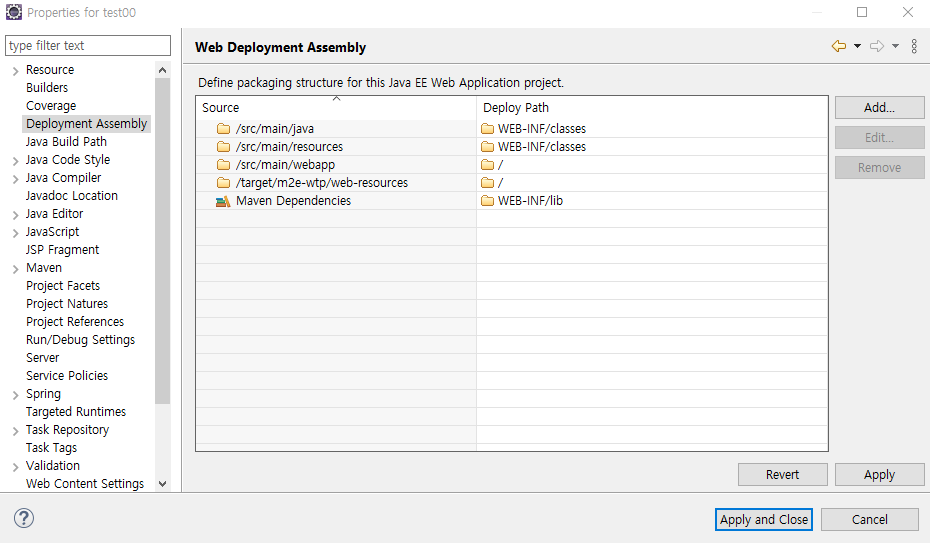
Deployment Assembly 로 이동

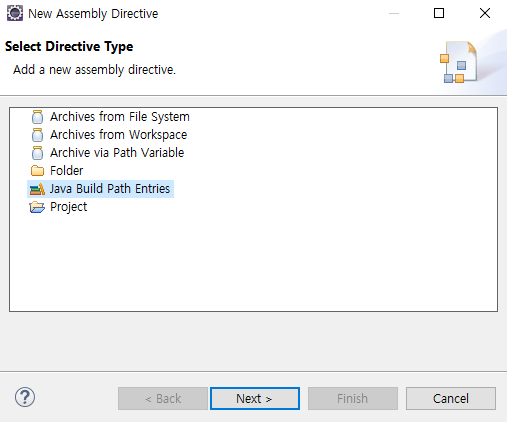
Add버튼 클릭


Java Build Path Entries 클릭

Next 클릭


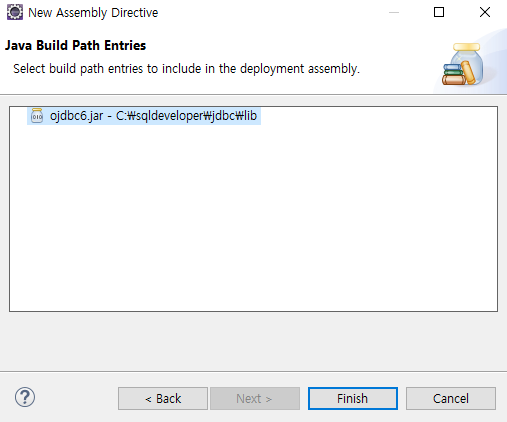
ojdbc6.jar 선택

Finish 클릭


추가 된 것을 확인

Apply and Close 클릭


8. root-context.xml 수정

<?xml version="1.0" encoding="UTF-8"?>
<beans xmlns="http://www.springframework.org/schema/beans"
	xmlns:xsi="http://www.w3.org/2001/XMLSchema-instance"
	xmlns:mybatis-spring="http://mybatis.org/schema/mybatis-spring"
	xsi:schemaLocation="http://mybatis.org/schema/mybatis-spring http://mybatis.org/schema/mybatis-spring-1.2.xsd
		http://www.springframework.org/schema/beans https://www.springframework.org/schema/beans/spring-beans.xsd">
	
	<!-- Root Context: defines shared resources visible to all other web components -->
		
	<bean id="hikariConfig" class="com.zaxxer.hikari.HikariConfig">
		<property name="driverClassName" value="net.sf.log4jdbc.sql.jdbcapi.DriverSpy"></property>
		<property name="jdbcUrl" value="jdbc:log4jdbc:oracle:thin@localhost:1521:XE"></property>
		<property name="username" value="test"></property>
		<property name="password" value="test"></property>		
	</bean>
	
	<!-- HikariCP configuration -->
	<bean id="dataSource" class="com.zaxxer.hikari.HikariDataSource" destroy-method="close">
		<constructor-arg ref="hikariConfig"/>
	</bean>
	
	<bean id="sqlSessionFactory" class="org.mybatis.spring.SqlSessionFactoryBean">
		<property name="dataSource" ref="dataSource"></property>
	</bean>
	
	<mybatis-spring:scan base-package="com.test.mapper" />
	
	
</beans>


root-context.xml은 내부적으로 Log4jdbc를 이용하는 방식으로 구성되어 있어

src/main/resources에 'log4jdbc.log4j2.properties' 파일을 추가

log4jdbc.spylogdelegator.name=net.sf.log4jdbc.log.slf4j.Slf4jSpyLogDelegator


끝!
반응형

'Spring Framework > 환경설정' 카테고리의 다른 글

[Test] JDBC, dataSource  (0) 2021.02.09
Spring Legacy Project 생성 및 기본설정  (0) 2021.01.07
Spring 구동순서  (0) 2021.01.07
Spring 설정파일  (0) 2021.01.07
반응형


파일업로드


Servlet 3.0 이후(Tomcat 7.0)에는 기본적으로 업로드되는 파일을 처리할 수 있는 기능이 있다.

하지만 'Spring Legacy Project'는 Servlet 2.5를 기준으로 생성되기 때문에

'commons-fileupload' 라이브러리를 이용


설정


pom.xml에 추가

<!-- fileupload -->
  <dependency>
    <groupId>commons-fileupload</groupId>
    <artifactId>commons-fileupload</artifactId>
    <version>1.3.3</version>
  </dependency>

저장 후 maven -> Update Project


파일이 업로드 될 폴더 생성

C:\upload\tmp


Servlet-context.xml 설정

<!-- multipartResolver -->
	<beans:bean id="multipartResolver" class="org.springframework.web.multipart.commons.CommonsMultipartResolver">
		<beans:property name="defaultEncoding" value="UTF-8"></beans:property>
		<!-- 1024 * 1024 * 10byte 10MB -->
		<beans:property name="maxUploadSize" value="104857560"></beans:property>
		<!-- 1024 * 1024 * 2byte 2MB -->
		<beans:property name="maxUploadSizePerFile" value="2097152"></beans:property>
		<beans:property name="uploadTempDir" value="file:/C:/upload/temp"></beans:property>
		<beans:property name="maxInMemorySize" value="10485756"></beans:property>
	</beans:bean>

defaultEncoding : 한글파일 업로드시 깨짐 방지                                                 

maxUploadSize : 한 번의 Request로 전달될 수 있는 최대크기                             

maxUploadSizePerFile : 하나의 파일 최대크기                                                                  

uploadTempDir : 메모리상에서 유지하는 크기가 클 때 임시파일 형태로 보관하는 곳

maxInMemorySize : 메모리상에서 유지하는 최대크기                                               


Controller 수정

  @GetMapping("/exUpload")
  public void exUpload() {
      //GetMapping
  }

  @PostMapping("/exUploadPost")
  public void exUploadPost(ArrayList<MultipartFile> files) {
  	//upload 된 파일 확인
    files.forEach(file -> {
      log.info("================================");
      log.info("name : " + file.getOriginalFilename());
      log.info("size : " + file.getSize());
    });
  }


View 생성

exUpload.jsp 생성

<%@ page language="java" contentType="text/html; charset=UTF-8"
    pageEncoding="UTF-8"%>
<!DOCTYPE html>
<html>
<head>
<meta charset="UTF-8">
<title>파일 업로드</title>
</head>
<body>
	<form action = "/sample/exUploadPost" method="post" enctype="mutipart/form-data">
		<div>
			<input type='file' name='files'>
		</div>
		<div>
			<input type='file' name='files'>
		</div>
		<div>
			<input type='file' name='files'>
		</div>
		<div>
			<input type='file' name='files'>
		</div>
		<div>
			<input type='submit'>
		</div>
	</form>
</body>
</html>


테스트 결과 화면

로그에 파일명, 파일사이즈 확인


끝!

반응형
반응형

Return Type


String

jsp를 이용하는 경우 파일의 이름과 경로를 나타내기 위해 사용

(String 타입에는 redirect, forward 키워드를 붙여 사용가능)

@RequestMapping(value="/sample", method="RequestMethod.GET)
public String home(Model model){
	
    (생략)
    return "home";
    
}

home.jsp


void

URL경로 그대로 jsp파일로 사용

@GetMapping("/ex05")
public void ex05(){
	
    (생략)
    
}

ex05.jsp


VO, DTO

복합적인 데이터가 들어간 객체 타입, 주로 JSON 데이터를 만드는데 사용

(jackson-databind라이브러리 추가하기 링크)

@GetMapping("/ex06")
public @ResponseBody SampleDTO ex06(){
	
    SampleDTO dto = new SampleDTO();
    dto.setAge(10);
    dto.setName("abc");
    
    return dto;

}

JSON 확인


ResponseEntity

View를 제공하지 않는 형태로 실행하며, 개발자가 직접 결과 데이터와 HTTP 상태 코드를 직접 제어할 때 사용

@GetMapping("/ex07")
	public ResponseEntity<String> ex07(){
		
		String msg = "{\"name\" : \"abc\"}";
		
		HttpHeaders header = new HttpHeaders();
		header.add("Content-Type", "applicaion/json;charset=UTF-8");		
		
		return new ResponseEntity<>(msg, header, HttpStatus.OK);
	}


끝!

반응형

'Spring Framework > MVC' 카테고리의 다른 글

Model, @ModelAttribute  (0) 2021.01.08
RequestMapping  (0) 2021.01.07
Controller  (0) 2021.01.07
반응형

Model 객체

컨트롤러에서 생성된 데이터를 담아 JSP에 전달하는 역할


Servlet에서 모델2 방식으로 데이터를 전달

request.setAttribute("serverTime", new java.util.Date());

RequestDispatcher dispatcher = request.getRequestDispatcher("/WEB-INF/jsp/home.jsp");

dispatcher.forward(request, response);


MVC에서 Model을 이용한 데이터 전달

public String home(Model model){
  
   model.addAttribute("serverTime", new java.util.Date());
 
   return "home";
}


@ModelAttribute

강제로 전달받은 파라미터를 Model에 담아서 전달하도록 할 때 필요한 어노테이션


1. Controller에서 @ModelAttribute로 int 값 전달

(package 및 import 생략)
@Controller
@RequestMapping("/sample/*")
@Log4j
public class SampleController {
(생략)
@GetMapping("/ex04")
	public String ex04(SampleDTO dto, @ModelAttribute("page") int page) {
		
		log.info("dto : " + dto);
		log.info("page : " + page);
		
		return "/sample/ex04";
	}
}


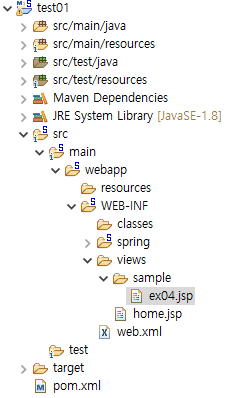
2. 테스트를 위해 '/WEB-INF/views' 밑에 sample 폴더 생성


리턴으로 사용한 'ex04' 의 jsp파일 생성

<%@ page language="java" contentType="text/html; charset=UTF-8" pageEncoding="UTF-8" %>
<!DOCTYPE html>
<html>
	<head>
	<meta http-equiv="Content-Type" content="text-html; charset=UTF-8">
	<title>ex04</title>
	</head>
	<body>
		
		<h2>SAMPLEDTO ${sampleDTO }</h2>
		<h2>PAGE ${page }</h2>		
		
	</body>
</html>


3. 결과 확인

@GetMapping 어노테이션을 사용했으므로 URL 뒤에 직접 쿼리스트링 작성

( http://localhost:8080/sample/ex01?name=test&age=111&page=3 )


값이 정상적으로 출력되는 것을 확인


끝!


반응형

'Spring Framework > MVC' 카테고리의 다른 글

Controller Return Type  (0) 2021.01.11
RequestMapping  (0) 2021.01.07
Controller  (0) 2021.01.07
반응형

@RequestMapping

@RequestMapping 어노테이션은 현재 클래스의 모든 메서드들의 기본적인 URL 경로가 된다.

@RequestMapping("/sample/*") 라는 경로로 지정 시

ㆍ /sample/a

ㆍ /sample/b

와 같은 경로 모두 SampleController에서 처리된다.


@RequestMapping에서 사용 할 수 있는 속성

String[] value : url패턴을 지정

@RequestMapping(value="/post")
@RequestMapping(value="/post.*")
@RequestMapping(value="/post/{postId}")


RequestMethod[] method : method를 명시하면 같은 URL이라도 다른 메서드 매핑

// /sample/basic 이며, GET 방식에 매핑
@RequestMapping(value="/basic", method = RequestMethod.GET)
		
// /sample/basic 이며, POST 방식에 매핑	
@RequestMapping(value="/basic", method = RequestMethod.POST)	


String[] params : 요청 파라미터와 값으로 구분

// /post?postId=Y 일 경우 호출됨
@RequestMapping(value="/post", params="postId=Y")

// 값에 상관없이 파라미터에 postId이 있을 경우 호출됨
@RequestMapping(value="/post", parmas="postId")


String[] headers : 헤더 값으로 구분

@RequestMapping(value="/post", headers="content-type=text/*")


일반적인 경우 GET, POST만 사용하지만,

최근에는 PUT, DELETE 방식도 많이 사용함.


끝!

반응형

'Spring Framework > MVC' 카테고리의 다른 글

Controller Return Type  (0) 2021.01.11
Model, @ModelAttribute  (0) 2021.01.08
Controller  (0) 2021.01.07

+ Recent posts